
Go to AdminVenues[venue]Team to manage who has access to your venue. You need the Team management permission to add or remove staff.
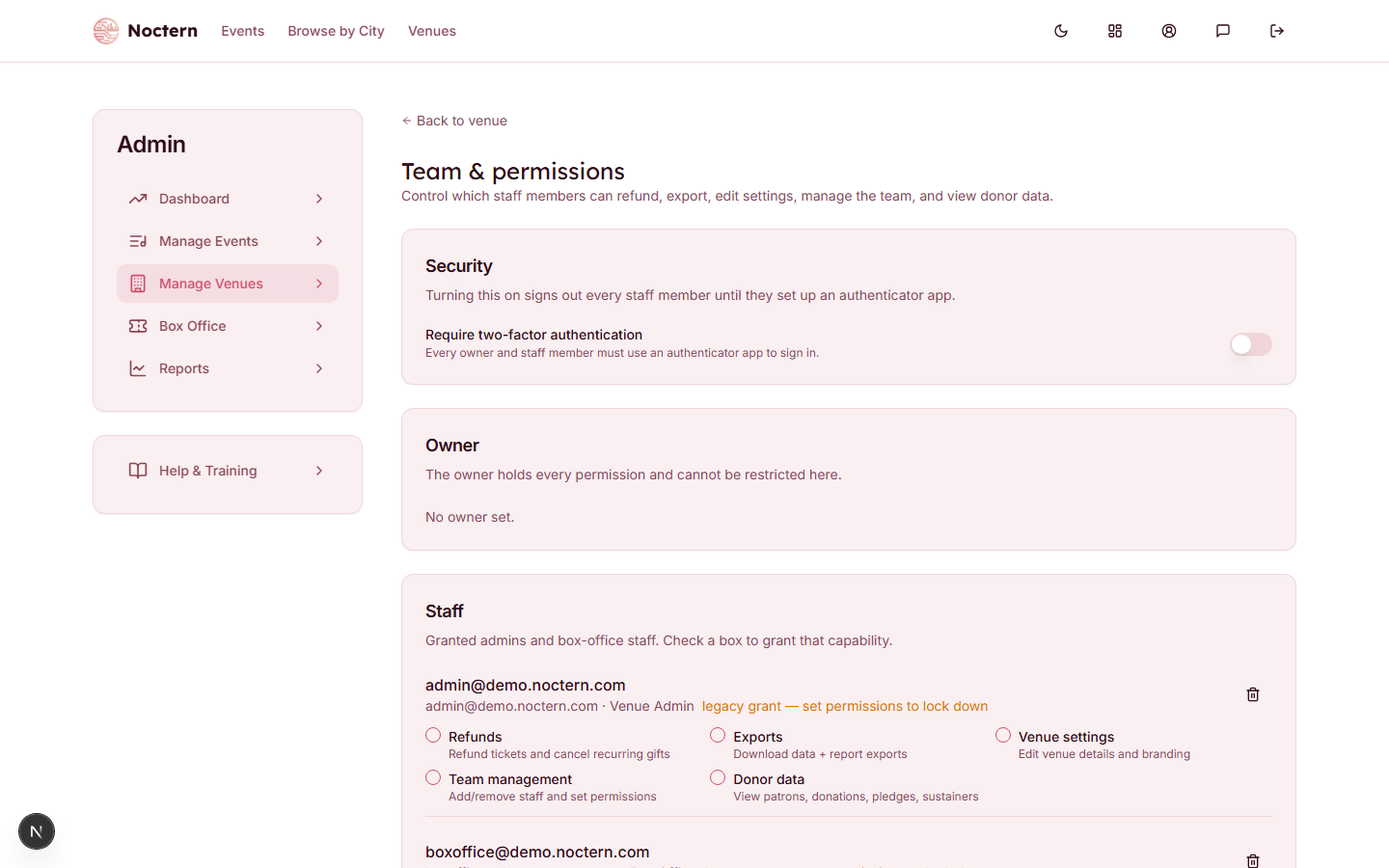
Owner, and two staff roles
The Owner card at the top shows the account that owns the venue. The owner holds every permission and cannot be restricted from this page.
Everyone else is listed under Staff, each with a role shown beside their email:
| Role | What it means | |---|---| | Venue admin | Can reach events, patrons, reports and settings for your venue. What they may change still depends on the permissions below | | Box office | Can sell tickets, take payments, place holds and check guests in. Cannot open reports or venue settings |
Box-office staff can open your patron list and search, create and look up patrons — that is how they find a buyer at the window. Do not treat the box-office role as a wall around patron data. Reports and venue settings genuinely are closed to them.
You do not pick the role on this page. A person's role comes from their Noctern account; granting access to someone who has no admin role at all promotes them to Venue admin, and the page tells you so ("…can now sign in to admin as Venue Admin").
The five permissions
Each staff member has five checkboxes. These are the exact labels the Team page shows:
| Permission | What it unlocks | |---|---| | Refunds | Refund tickets and cancel recurring gifts | | Exports | Download data and report exports | | Venue settings | Edit venue details and branding | | Team management | Add and remove staff and set their permissions | | Donor data | View patrons, donations, pledges and sustainers |
Every box starts unchecked for a newly added staff member — including a venue admin. Tick what the person needs. A change saves the moment you tick it; there is no separate save.
Donor data is the one to think hardest about: it decides who can see your donors and what they have given. Tick it for your development staff and your leadership, and leave it off for everybody whose job does not need giving history.
A row marked "legacy grant — set permissions to lock down" is someone who was given access before permissions existed. They are treated as an unrestricted grantee until you tick the boxes you actually want them to have.
Adding a staff member
- Go to AdminVenues[venue]Team.
- Scroll to Add a team member at the bottom of the Staff card.
- Type the person's email address. They must already have a Noctern account with that exact address — Noctern does not send an invitation from here.
- Tick the permissions they should start with.
- Click Add. Access takes effect immediately.
Removing a staff member
Click the trash button at the right of their row. Their access to your venue is revoked immediately — the next thing they try at your venue is refused, and your venue disappears from their admin.
Removing someone from your team does not change their Noctern account. If they were promoted to Venue admin when you added them, that role stays on their account; the toast tells you so when it applies.
Requiring two-factor sign-in
The Security card at the top of the page has Require two-factor authentication. Underneath it, Noctern lists exactly who is affected — your owner and your granted staff, nobody else — each tagged Authenticator set up or Not set up.
- Read the list and note who is marked Not set up.
- Switch Require two-factor authentication on.
- Confirm. The dialog names the people who will be asked to set up an authenticator at their next sign-in.
Two things worth knowing:
- The card's first line tells you whether the switch bites right now. Two-factor sign-in is a Noctern-wide setting as well as a per-venue one; if it is switched off or in a trial period platform-wide, turning this on records the intent but nobody is blocked yet.
- When it does bite, turning it on signs your whole team out, and each person sets up an authenticator app at their next sign-in. Staff can also enrol in advance from their own Profile → Security page: the Two-factor authentication card there has a Set up authenticator app button.
Any venue admin of your venue can change this switch — the Team management permission is not required for it, and box-office staff can never change it.
Switch it on before a show, not during one. Everyone at the window has to sign in again.
Add a colleague with only Refunds ticked. Ask them to sign in and confirm they can open the refund dialog on an order but get nowhere on AdminVenues[venue]Edit.