
Noctern supports two types of discount codes: event-level codes (attached to a specific event) and venue-level codes (apply to all events at the venue).
Two scopes
Event-level codes are created on the event edit page under Discount Codes. They appear in the public checkout only for that event. If an event code and a venue code share the same name, the event code takes priority.
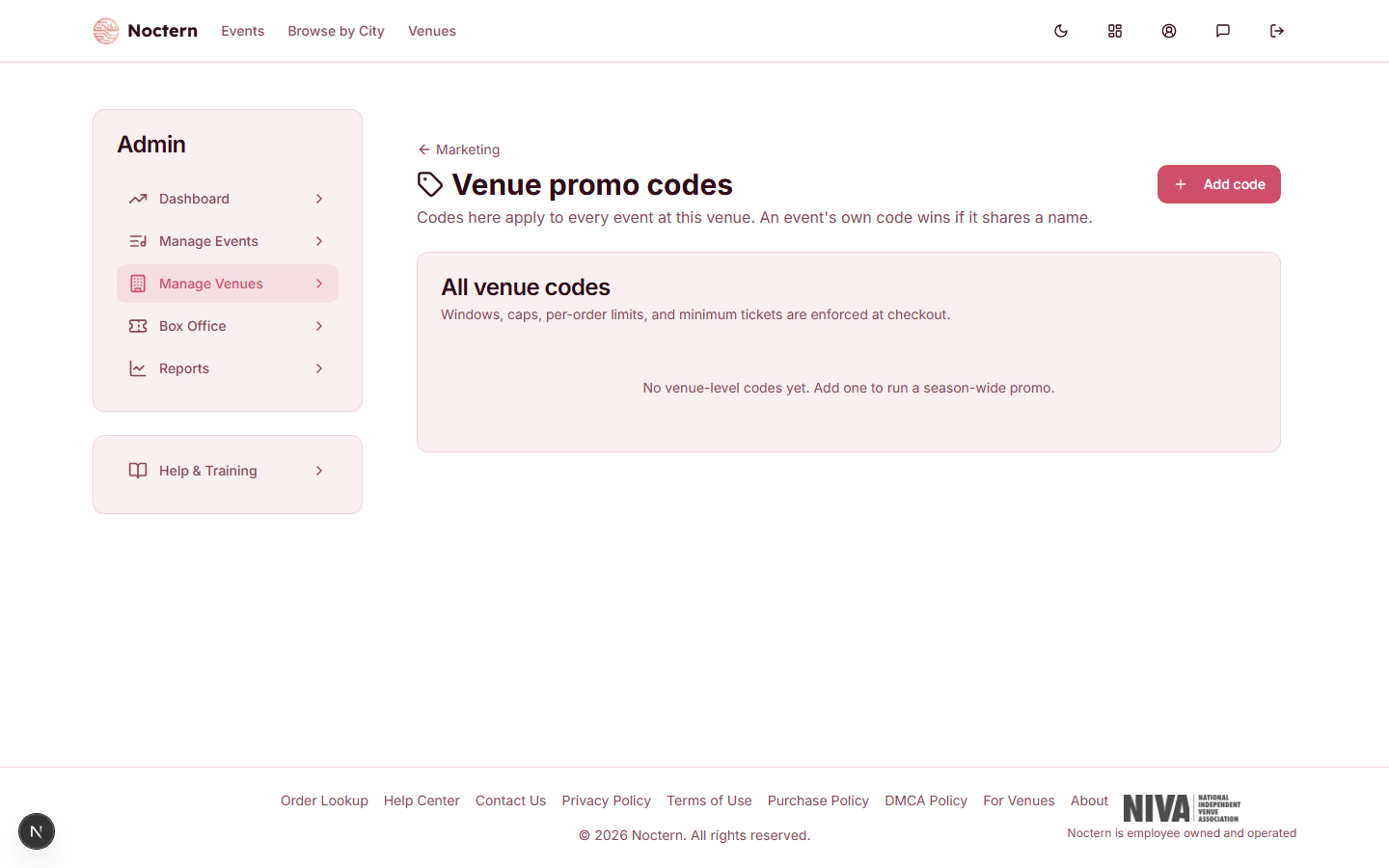
Venue-level codes are created at AdminVenues[venue]Promo Codes and apply to every event at the venue unless you restrict them. Use venue-level codes for recurring promotions like a member discount or newsletter code.
You don't have to remember that URL: the venue hub's Promo Codes card (Money row) links here, and the event edit page's Discount Codes section links here too, since venue-level codes silently apply to every event even when they're only managed from this page.
Code types
| Type | How it works | |---|---| | Percentage | Discounts by a % of the base ticket price (for example, 20% off) | | Fixed | Subtracts a flat dollar amount (for example, $10 off) | | Max price | For All-In events only — caps the buyer's price at a maximum amount per ticket |
Free-ticket codes
A code can grant free tickets instead of, or in addition to, a discount. In the promo code editor, toggle on Benefit and configure:
- Unlimited free tickets — every eligible seat in the order gets a free ticket, with no per-order count limit
- Free tickets per redemption — a number of free tickets granted per order, not a lifetime total. It resets every time the code is redeemed (unlike a membership's free-events allowance, which is a term budget that draws down over the membership period)
- Max free ticket price — a dollar ceiling on a seat's base price for it to qualify as free; seats priced above the ceiling are never eligible. Leave blank for no ceiling
- Max free per event — caps how many free tickets one order can claim at a single occurrence, on top of the per-redemption count or unlimited toggle
Combining a benefit with a discount: if a code carries both a free-ticket benefit and a discount (percentage, fixed, or max price), free tickets are allocated first, applied to the highest-priced eligible seats in the order up to the configured caps. The discount then applies to whatever tickets are left over.
A free ticket only zeroes out the ticket price itself. The day-of-show upcharge and the ticket delivery fee are separate line items and still apply on a free ticket unless a staff member waives them separately at the point of sale.
Rules
When creating or editing a code, configure these rules:
- Active switch — enable or disable without deleting
- Starts / Ends — optional date-time window; buyers see "Code expired" outside it
- Max uses (total) — caps total redemptions across all patrons; shows "N used" read-only; cannot be overridden
- Max uses per patron — caps redemptions by one patron, matched by their account id, or by lowercased email if they don't have one; shown alongside the total cap as "N of M used"; also cannot be overridden
- Per-order limit — maximum tickets discounted in one order
- Min tickets — buyer must purchase at least N tickets for the code to apply
- Applies to tiers / categories — restrict the discount to specific sections or pricing categories
- Only for this email — ties the code to one buyer; see below
Codes for one person
Fill in Only for this email to make a code usable by a single buyer — for example a one-time thank-you code for a donor. Online checkout then accepts the code only when the buyer's email matches that address (capital letters and stray spaces don't matter). Anyone else who types the code is told it isn't valid for the event, exactly as if they had mistyped it, and simply pays the regular price — their purchase is never blocked.
How the buyer's email is checked:
- Signed-in buyers — the email on their account, and only once they have verified it.
- Guests — the email they enter for their tickets. A guest sees the discount right away; if the email they then enter doesn't match, the code is removed and the total goes back to the regular price before they pay.
Leave the field blank and the code works for anyone, as before. To lift the restriction later, clear the field and save.
This applies to online sales. Box office and door staff can still apply the code for any customer, the same as any other code.
Promo report
The promos list shows:
- Status — Active, Scheduled (window not open yet), Expired, Exhausted (cap reached), Inactive
- Remaining — max redemptions minus used
- Scope — Event or Venue
- Free tickets granted — running total of free tickets issued by the code, shown per code and summed across the report
A code that hits its redemption cap is flagged "Exhausted" and stops working immediately. Buyers who attempt it see "Code limit reached." Staff cannot override this — increase the cap or create a new code.
Patrons cannot stack two codes. If a patron's active membership benefit applies, the promo code is automatically blocked for that order.
Creating a venue-level code
- Go to AdminVenues[venue]Promo Codes.
- Click New promo code.
- Enter a Code (case-insensitive; buyers type this at checkout), choose a Type, and set the Value.
- Optionally set a sale window, redemption cap, and tier restrictions.
- Toggle Active on and click Save.
Create a venue-level code "FRIENDS10" for 10% off, set a max redemption of 50, and test it in a public checkout tab. Then disable it from the promo codes list and confirm the checkout rejects it.