
Every gift is attributed to a fund — a named account like "Annual Fund" or "Education & Access" — and optionally to an appeal, the specific ask that brought it in. Funds answer what the money is for; appeals answer what prompted the gift. Both live on the Fundraising page, next to Record a gift.
Before you start
Venue Admin can manage funds and appeals — no extra capability is needed for this page. You do need canViewDonors to record a gift or open the Gifts ledger, and canExport for the development reports.
Fundraising only appears on the venue hub for venues set up as nonprofits. If the card is greyed out with "Nonprofit features not enabled," Noctern support turns that on for you.
Funds
Go to AdminVenuesFundraising.
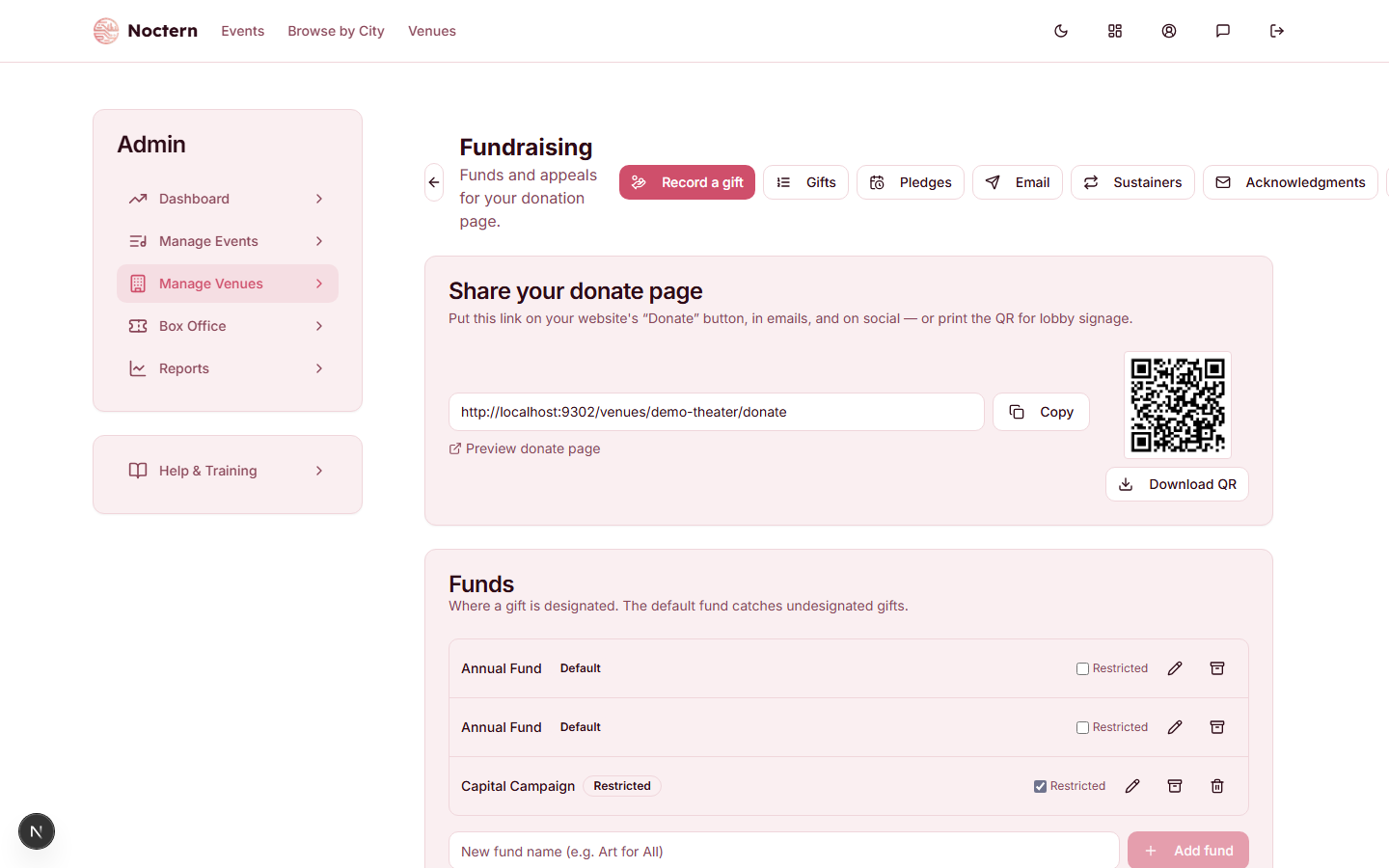
Type a name into the New fund name box (for example, "Art for All") and click Add fund. Pressing Enter adds it too.
Tick the Restricted checkbox on the fund's own row if gifts to it are donor-restricted. It saves as soon as you tick it — it isn't part of the add form, so new funds always start unrestricted.
Use the pencil icon to Rename a fund, or the archive icon to retire one you no longer solicit for. Archived funds get an Archived badge and drop out of both the Record a gift dialog and the public donate page, but they keep their giving history.
To see an archived fund again, tick Show inactive in the card header. That checkbox only appears once at least one fund is archived.
Every venue has one fund badged Default — created automatically, named "Annual Fund" until you rename it. It catches every gift that isn't designated anywhere else.
Each fund row can also show a gift count and the date of its last gift ("(never)" if it has none). Those are periodic rollups rather than live counts, so treat them as a rough signal when you're deciding what to archive — the Gifts ledger is the exact record.
Appeals
An appeal is a specific solicitation — a spring letter, a gala ask, a giving-day campaign — with an optional dollar goal.
Type a name into the New appeal name box (for example, "Spring Letter"), optionally fill in Goal $, and click Add appeal.
Click the copy icon (Copy donate link) to put that appeal's donate link on your clipboard. Put it in the letter, the email, or the social post that is the appeal — every gift that arrives through it is attributed to the appeal automatically.
The line under each appeal reads "$raised of $goal · N gift(s)" when a goal is set, or "$raised raised · N gift(s)" without one, and the progress bar only appears when there's a goal. Both numbers count completed gifts net of refunds, so a refund walks the total back down.
Appeals can only be created, copied, and deleted from this page — there is no rename, goal edit, or archive. Pick the name and goal you want up front. Delete has no confirmation step, and an appeal that already has gifts can't be deleted at all.
How a gift gets attributed
- Record a gift (check, cash, in kind) — you choose both. The Fund picker lists active funds only and preselects the default fund. The Appeal (optional) picker defaults to — None —, and is hidden entirely when the venue has no active appeals.
- An appeal's donate link — the appeal comes from the link; the fund comes from the donor's Designate to choice.
- Your plain donate page, or a gift added to a ticket order — the fund comes from Designate to (or the default fund); there is no appeal on these gifts.
On the public donate page, Designate to only appears when you have more than one active fund; with one fund the donor isn't asked and the gift lands in the default fund.
An appeal's donate link carries the appeal silently. The donor sees your ordinary donate page — not the appeal's name, goal, or progress. If you want the donor to see which campaign they're giving to, say so in the letter or email that carries the link.
A sustainer who signs up through an appeal link stays attributed: every future installment is credited to the same appeal.
Where funds and appeals show up
- Gifts ledger (AdminVenuesGifts) — filter by Fund; each row shows its Source / Appeal.
- Gifts report (AdminVenuesReports → Gifts) — filter by both Fund and Appeal, with a column for each, and export to CSV or XLSX.
- Development reports (AdminVenuesFundraising → View reports) — the Gifts tab shows a Fund column. It has no appeal column and no fund filter, so use the Gifts report for those.
- Year-end giving statements — gifts are summarized by fund, with restricted funds grouped separately and labelled as restricted.
Watch out
The Restricted checkbox changes what appears on a donor's tax document: restricted gifts are grouped and labelled separately on year-end statements. Only tick it for funds that are genuinely donor-restricted. The disclosure wording itself comes from your venue's receipt statement in venue settings, so check that it says what your finance staff need it to say.
Deleting a fund has no confirmation prompt. The default fund has no delete button at all, and a fund with any gift history refuses to delete — archive it instead, which is what you want anyway: deleting would orphan the attribution on past gifts.
- Open the demo venue's Fundraising page and note the Education & Access fund's Restricted badge, and the Default badge on Annual Fund.
- Add a test fund, tick Restricted on its row, then archive it and confirm it disappears until you tick Show inactive.
- Copy the Year-End Appeal donate link, open it in a new tab, and confirm the donate page looks completely ordinary — the appeal is attributed without being shown.