
With a buyer selected, the next step is choosing what they're buying — seats on a reserved-seating map, or a quantity on a general-admission event.
Reserved seating
Click a seat on the map to select it; click it again to deselect it. Seats are colored by pricing tier. Seats you select are labeled Your Hold; a seat already sold or otherwise unavailable is plain grey, regardless of tier. If the layout has a wheelchair-accessible seat, an Accessible entry appears in the legend.
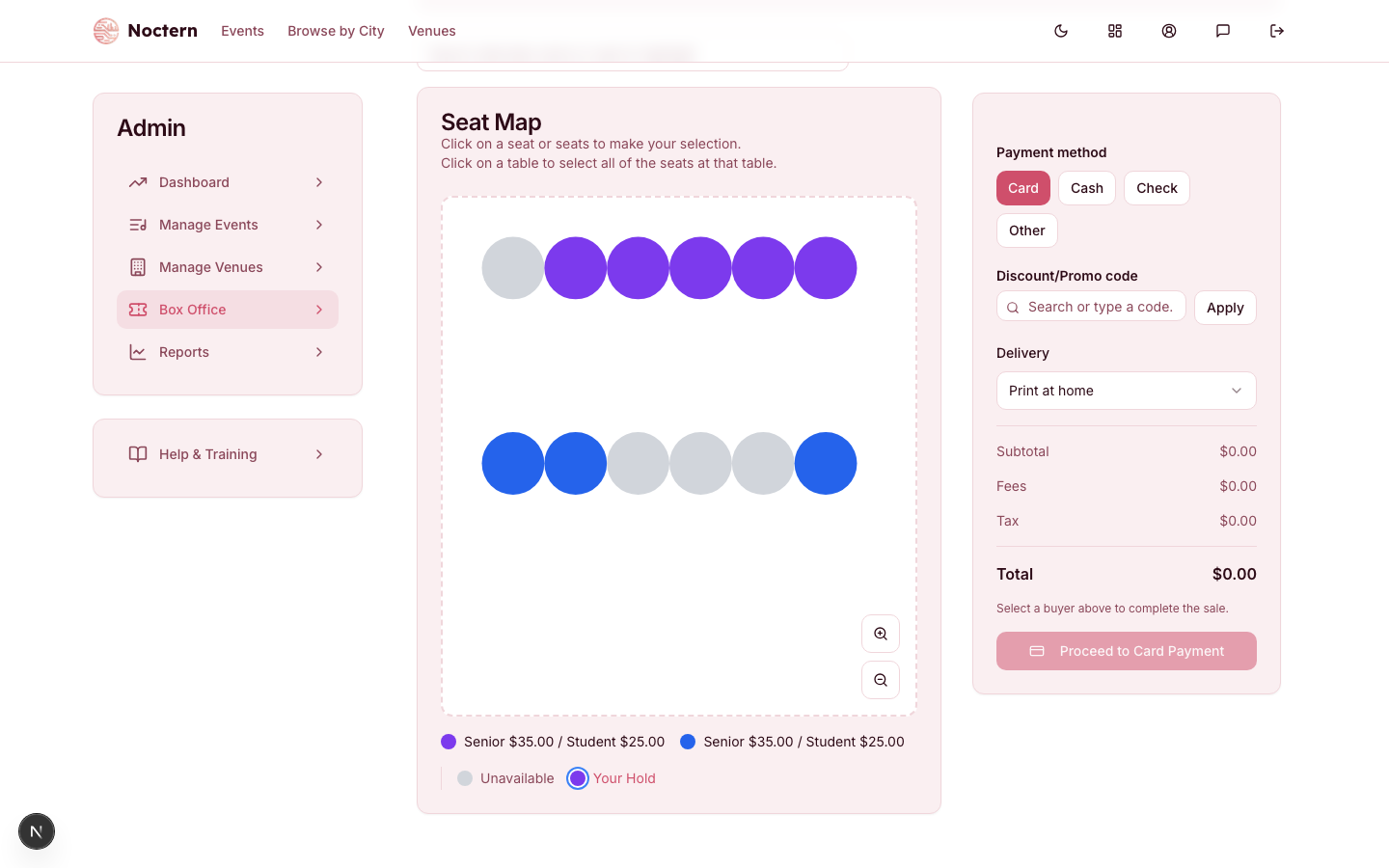
Reserved-seating box office seat map with a held group block visible Selected seats appear in the order summary with a running total. The total shown is always server-computed — it isn't just adding up client-side numbers.
Seats another session is holding look the same as sold seats — plain grey — and can't be clicked. Hover over a grey seat that's part of a group-sale block to see the group name (for example, Held — Lincoln Elementary (Group)).
Held seats you select yourself have a longer hold window than a public patron's cart hold — you don't need to rush through checkout the way a customer buying online does. Still, don't leave seats sitting selected indefinitely; release them if the sale falls through.
General admission
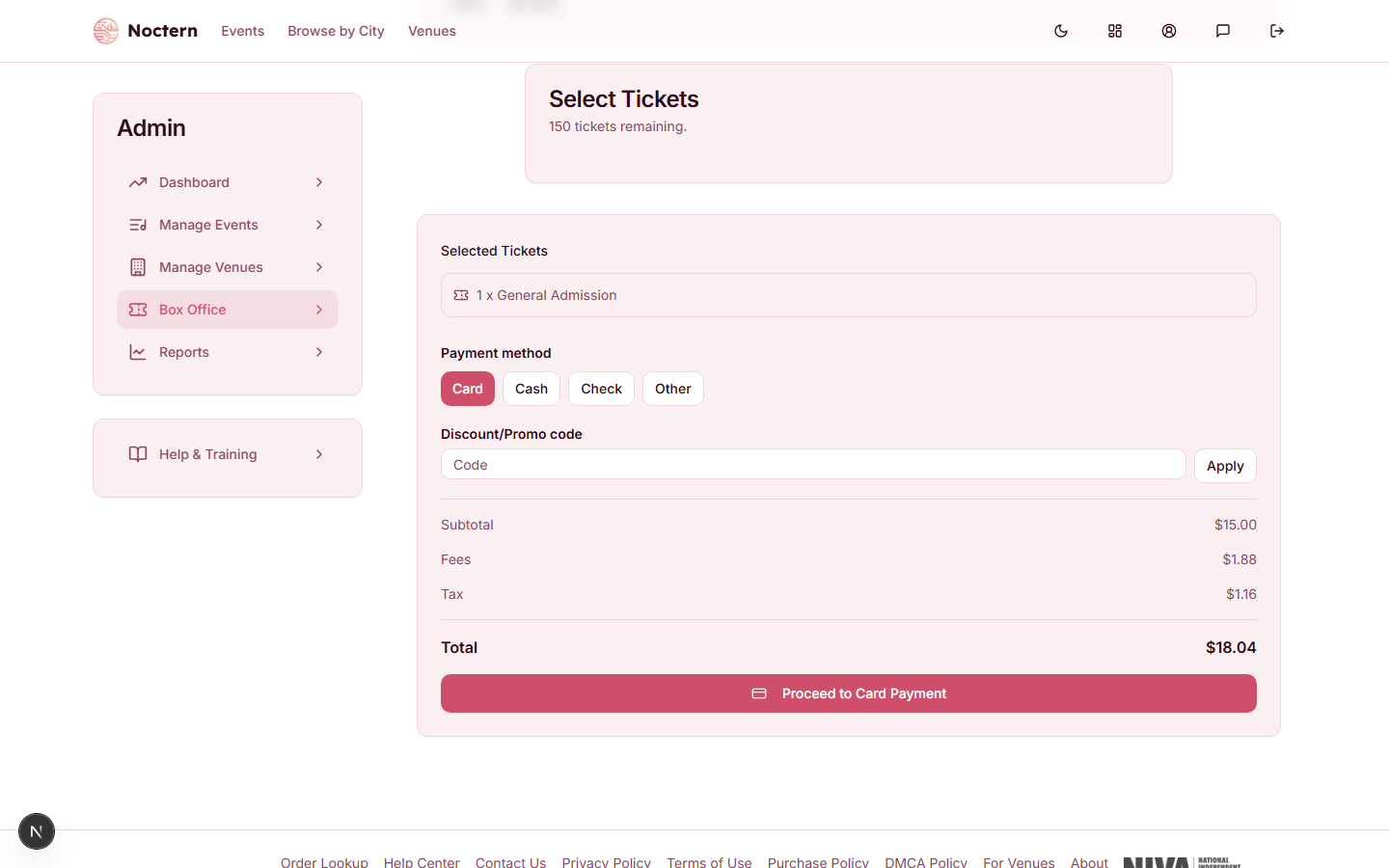
GA events use a Select Tickets card with a quantity stepper (+ / −) per pricing tier, plus a running count of tickets remaining for that tier. Adjust the quantity, and the order summary updates the same way it does for reserved seating.
Pricing categories (senior, student, and similar) aren't applied per seat at the box office — the category options you see on the event were set up for other sales channels. If a patron needs a discounted rate, use a promo code instead (see the next topic).