
Every patron has one detail page that brings together their giving, their tickets, and their contact history. It's the page you'll live in as a development staffer.
Before you start
- Venue Admin with canViewDonors.
- Open a patron from the Patrons list, or from a search result anywhere in the admin.
The header
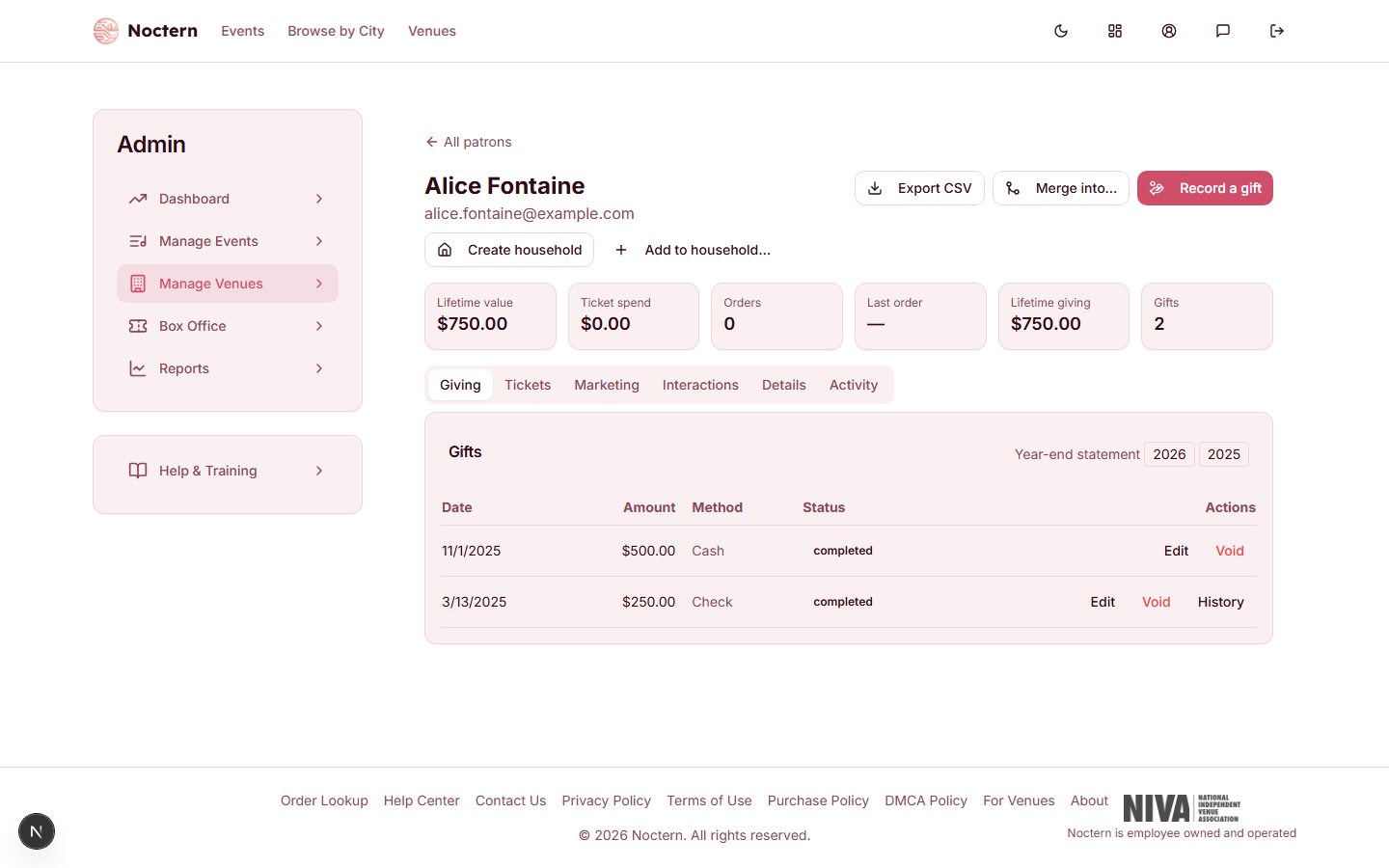
Six rollup tiles run across the top: Lifetime value (giving plus ticket spend combined), Ticket spend, Orders, Last order, Lifetime giving, and Gifts. If the patron belongs to a household, a chip beneath the name links to it; otherwise you'll see Create household and Add to household… buttons.
Header buttons: Record a gift, Merge into…, and Export CSV.
Tabs
Giving — the gifts table (Date, Amount, Method, Status, Actions), a Year-end statement row linking to the current and prior tax year's PDF, and — if this patron has been credited for someone else's gift — a Soft credits card badged "not counted in totals."
Tickets — live Noctern purchases, plus a separate, clearly-labeled card of orders imported from a previous system. Imported orders are read-only and capped at 50 shown, with a "Showing 50 of N imported orders" note when there are more.
Marketing — email consent (can-receive-marketing-email, venue-level do-not-email, and the patron's global promotional-email preference) and deliverability status (bounced, complained, last email event).
Interactions — log a note against the patron: Call, Email, Meeting, Letter, Ask, Thank You, Event, or a plain Note.
Details — editable contact fields, custom field values, household membership, mailing address, external system references, and merge history.
Activity — a combined timeline of staff actions, interactions, gifts, and purchases for this patron.
Coming soon: campaign engagement (opens/clicks) on the Marketing tab isn't wired up yet — the card is a placeholder until in-app email campaigns ship.
Editing a patron's details
Open the Details tab.
Update name, email, phone, salutations, tags, or the Do not email / Do not mail flags. If mail was returned, record the date and a note.
Fill in any custom fields your venue has defined for patrons.
Click Save details.
Watch out
Imported historical orders are display-only — they show a patron's pre-Noctern ticket spend but can't be refunded or exchanged through Noctern, because they were never real Noctern purchases. Don't confuse them with live orders when reconciling a patron's activity.
A patron's External records on the Details tab exist so a later re-import recognizes them instead of creating a duplicate. Don't edit or remove them by hand.
- Open a patron with giving history in the demo venue and read through all six tabs.
- On the Interactions tab, log a Thank You note.
- Check whether the patron has a household chip under their name — if not, note the Add to household… button for the Households topic.