
There are two check-in pages, and it's worth knowing which is which:
- Check-in — opened from one performance: AdminEvents[event], then Check in attendees under the Day-of card. It has a QR Scanner tab (the camera) and a Manual Check-in tab. This is where you actually scan tickets.
- Check-in Status (AdminBox OfficeCheck-In) — pick a venue and performance to see Total / Checked In / Remaining counts, a Seating Chart tab showing who's in, and its own Manual Check-in tab. It does not have a camera scanner.
For scanning tickets at the door, use the performance's own Check-in page.
Scanning a ticket
Open the performance's Check-in page. Your browser will ask for camera permission — allow it.
Click Start Scanning. (The refresh button next to it restarts the camera if the picture freezes.)
Point the camera at the patron's QR code, on their phone or a printed ticket. The scanner detects it on its own — there's nothing to press per guest. While it's working the screen says Validating Ticket…
Read the result and let the guest in, or handle the exception below.
Reading the result
The result shows as a coloured panel with a heading and a message.
| Colour | Heading | What it means |
|---|---|---|
| Green | Valid | "Ticket is valid. Checked in successfully." Let them in. |
| Yellow | Checked In | "This ticket has already been checked in at {time}" — plus who checked it in and whether it was done at the door on the POS app, when that's known. |
| Red | Invalid | Refused. The message says why — see below. |
The refusal messages, word for word:
| Message | What to do |
|---|---|
| "This ticket has been refunded." | Don't admit. The order was refunded (or a refund is in flight). |
| "This ticket has been voided." | Don't admit. The ticket was cancelled or invalidated. |
| "Ticket was exchanged — new ticket {id}." | Ask for their most recent confirmation email; the new ticket's QR code is the one that scans. |
| "This ticket was transferred to another guest and is no longer valid." | The holder gave it away — the new holder's ticket is the valid one. |
| "This order is under a payment dispute and cannot be admitted." | Don't admit. Send them to a venue admin. |
| "This ticket is not valid for this event." | It's a ticket for a different performance. |
| "Ticket needs the box office." | Something is wrong with the ticket's record — don't improvise, hand it to the box office. |
| "Ticket not found for this event." | The code isn't a ticket for this performance at all. |
Every one of those checks is the same on every surface — this scanner, Manual Check-in, the Door POS app, and the printed-sheet photo flow all make the identical decision. A ticket refused here is refused everywhere.
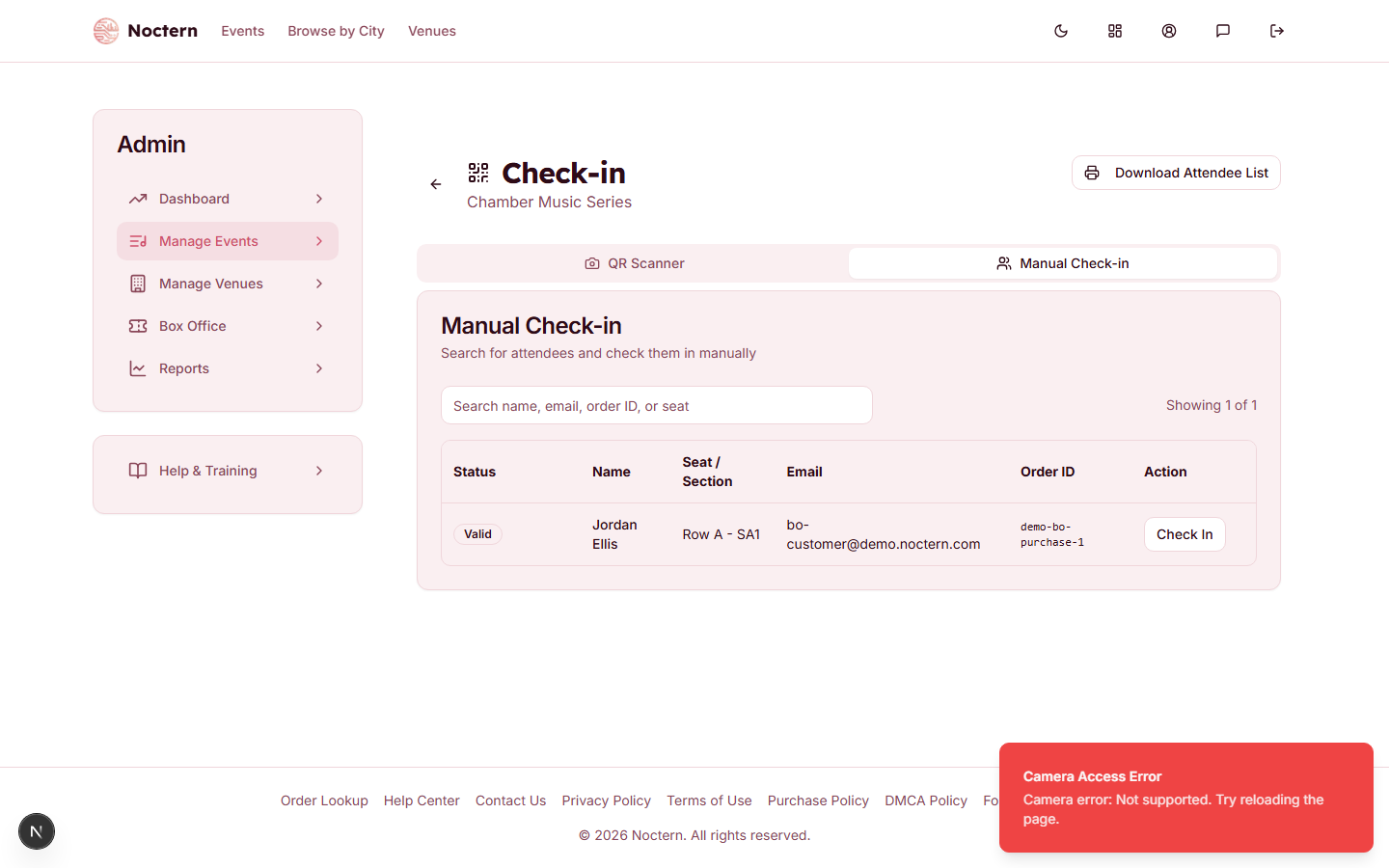
The camera scanner does not display the patron's name or seat on the result panel — only the status and message. If you need to confirm who is being checked in, use the Manual Check-in tab, which shows name, seat, section, email, and order id in a searchable table.
When the camera can't read the code
Switch to the Manual Check-in tab.
 1Valid2Check In
Manual check-in tab showing a valid, not-yet-checked-in ticket Search by name, email, order id, or seat — whatever the guest can give you.
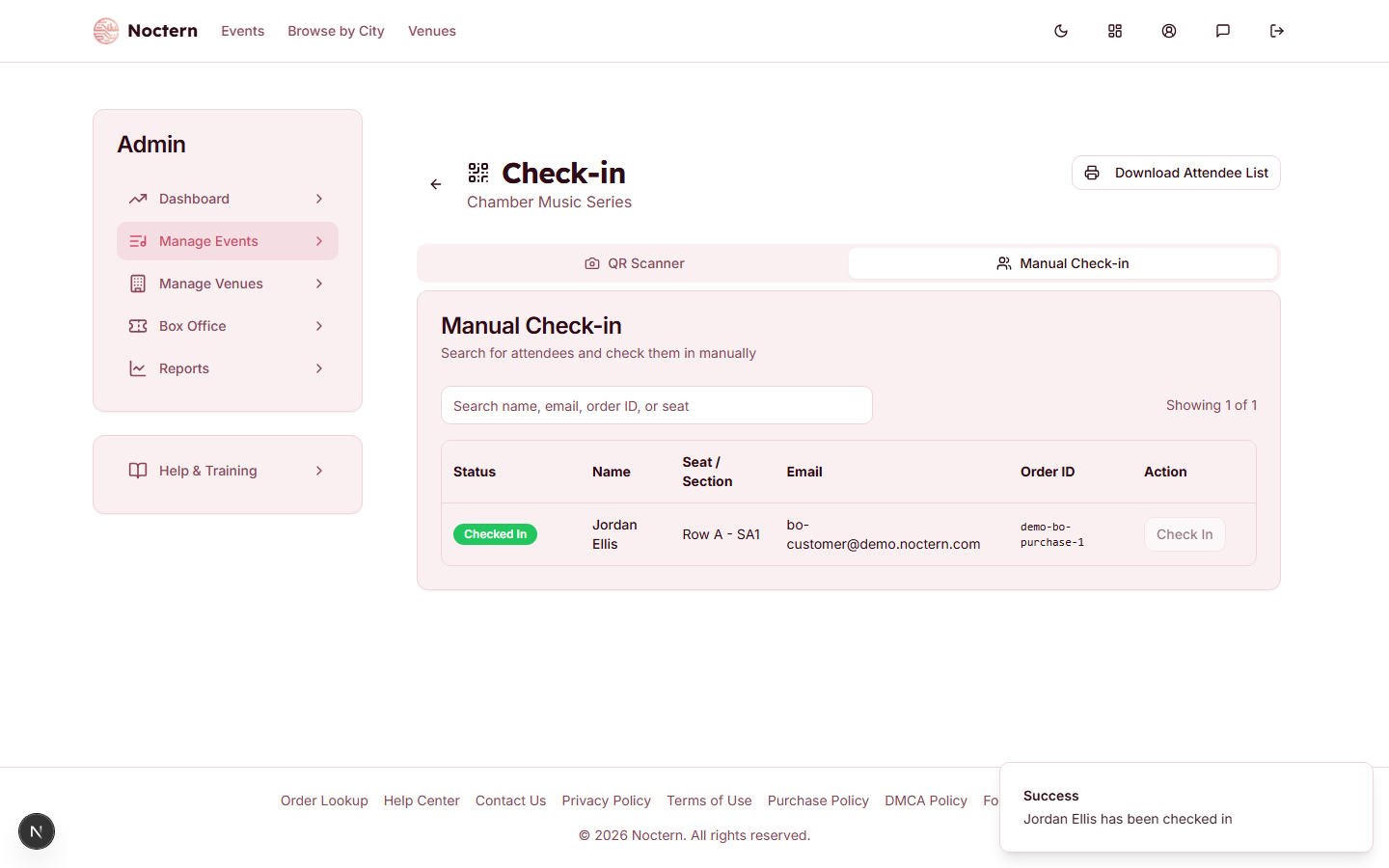
Click Check In on the matching row.
 1Checked In
Manual check-in tab after checking a ticket in
If the browser refuses camera access altogether, the page says so and points you at the Manual Check-in tab. Retry Camera Access tries again once you've changed the browser's permission.
The guest list
Both check-in pages have a Download Attendee List button that produces a PDF door list (not a live web list) — name, seat/section, membership and order id for every attendee, plus a numbered row and a tick-box per line. Useful as a backup if you expect to lose connectivity, or for a printed door list.
Before working at a venue with unreliable Wi-Fi or cell service, download the list first. And if you work the door off the printed sheet, you can photograph the ticked sheet afterwards to check everyone in at once — see Checking In from a Printed Attendee List.